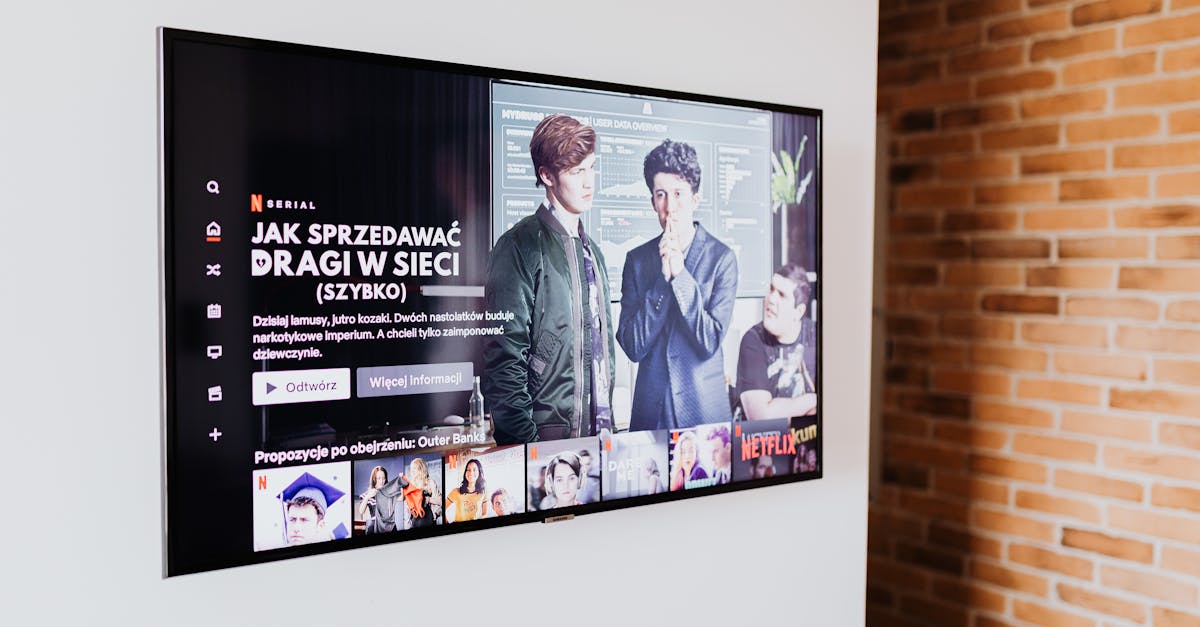
7 Overlooked Reasons Your Smart TV Feels Frustrating
The dream of a smart TV is alluring: a seamless portal to all your favorite entertainment, effortlessly controlled by a single remote or your voice. In reality, for many, that dream quickly devolves into a tangle of lagging menus, app crashes, and connectivity woes. I’ve spent countless hours troubleshooting these ‘smart’ devices for myself and friends, and what I’ve consistently found is that the problems rarely lie with the TV’s core hardware. Instead, they’re almost always rooted in a series of overlooked settings, environmental factors, or common usage habits that chip away at the experience until your smart TV feels anything but smart.
It’s not just about a slow internet connection; that’s too simple. The issues are often more insidious, hidden beneath layers of factory defaults and marketing promises. What changed everything for me was realizing that optimizing a smart TV isn’t about buying the most expensive model, but understanding its ecosystem and how it interacts with your home. The mistake I see most often is treating a smart TV like a traditional dumb TV – plug it in, connect it, and expect magic. The reality demands a more proactive, informed approach.
Key Takeaways
- Your smart TV’s built-in OS likely suffers from bloatware and unnecessary background processes that degrade performance.
- The TV’s Wi-Fi antenna placement and interference from other devices significantly impact streaming stability.
- Automatic software updates, while convenient, often introduce bugs or performance issues that go unnoticed.
- Relying solely on the default remote’s IR signal can lead to unresponsive controls due to line-of-sight limitations.
- Over-relying on the TV’s internal storage for apps and cache can slow down its entire operation.
- Your TV’s factory display settings often prioritize vibrancy over accuracy, leading to an unnatural viewing experience.
- The built-in smart TV app ecosystem can be clunky; an external streaming device often provides a superior user experience.
Your TV’s Operating System Is Overburdened
Most smart TVs run on a proprietary operating system (OS) like Tizen (Samsung), WebOS (LG), or Android TV. While these platforms are designed to be user-friendly, they often come pre-loaded with a significant amount of bloatware – unnecessary apps and services that run in the background, consuming valuable RAM and processing power. This is the silent killer of performance. It’s like buying a brand new computer that already has dozens of programs running before you even open a single application.
In my experience, a TV that felt sluggish straight out of the box was almost always suffering from this issue. For instance, I once helped a friend with a new TV that would freeze for several seconds every time they switched apps. After digging into the settings, we found numerous manufacturer-specific apps, obscure content aggregators, and even redundant voice assistant services running concurrently. We couldn’t uninstall all of them, but by disabling notifications, preventing background data usage, and forcing-stopping services we didn’t use (where the OS allowed), the responsiveness improved dramatically. Think of your smart TV’s OS as a smartphone: you wouldn’t let dozens of apps run unchecked, so why do the same with your TV? The critical action here is to meticulously review your TV’s app management settings and disable or uninstall anything you don’t actively use. Look for options to restrict background app refresh or data usage, similar to how you manage apps on your phone or tablet. This alone can free up significant resources and make your TV feel much snappier.
Suboptimal Wi-Fi Performance from the TV Itself
It’s easy to blame your internet service provider (ISP) for slow streaming, but often, the problem lies closer to home: your smart TV’s Wi-Fi antenna and its placement. Unlike a laptop or phone, which you can easily move for better reception, your TV is usually a stationary object. Many smart TVs, especially older or budget models, feature internal Wi-Fi antennas that are not as robust as those in dedicated streaming devices or computers. Furthermore, the antenna’s design and placement within the TV’s chassis can be susceptible to interference.
I’ve seen this firsthand. My previous smart TV, positioned against an exterior wall with dense insulation and several other devices nearby (a soundbar, a gaming console, a cable box), struggled with consistent 5GHz Wi-Fi speeds, despite my router being less than 15 feet away. Running a speed test on the TV itself often showed less than half the bandwidth compared to a phone in the same spot. What changed everything for me was realizing that physical obstructions and electromagnetic interference degrade your TV’s Wi-Fi signal far more than commonly assumed. The concrete wall, metal framing, or even the large metal case of a gaming console can act as barriers. The solution isn’t always a new router. First, try relocating your router to a more central, unobstructed position. If that’s not feasible, consider a wired Ethernet connection for your TV. For those who cannot use Ethernet, investing in a good quality mesh Wi-Fi system or a Wi-Fi extender placed strategically near the TV can boost signal strength and provide the consistent bandwidth a smart TV truly needs for smooth 4K streaming.
Unexpected Complications from Automatic Software Updates
Automatic software updates are typically seen as a convenience, ensuring your device has the latest features and security patches. However, with smart TVs, they can often be a source of frustration, introducing bugs, changing interfaces, or even degrading performance. Manufacturers frequently push updates that are not thoroughly tested across all TV models or user configurations, leading to unintended consequences.
I vividly recall an instance where an automatic update on my previous smart TV introduced an irritating audio delay that wasn’t present before. Dialogue became slightly out of sync, making movies unwatchable until I spent hours researching user forums and finally finding a specific setting to manually adjust the audio delay. What changed everything for me was realizing that automatic updates aren’t always a net positive for smart TV performance. The mistake I see most often is assuming every update is an improvement. Instead, I now recommend disabling automatic updates and instead, checking for new versions manually every few months. Before installing, quickly search online for ’ [Your TV Brand][Model Number] latest update issues’ to see if other users are reporting problems. This proactive step allows you to avoid known bugs or wait for a subsequent patch if a particular update is causing widespread issues, giving you more control over your viewing experience.
Unresponsive Controls Due to Infrared Limitations
Many smart TV remotes, despite their sleek designs and voice control capabilities, still rely primarily on infrared (IR) technology for basic functions like power, volume, and channel changes. IR signals require a direct line of sight between the remote and the TV’s IR receiver. This seems obvious, but in modern living rooms filled with soundbars, strategically placed decor, or even just the user slouching on the couch, that line of sight is frequently obstructed.
I often find myself wrestling with a smart TV remote, pressing buttons repeatedly with no response, only to realize my hand or a decorative plant is blocking the signal. It’s a minor annoyance that quickly compounds into significant frustration. What changed everything for me was recognizing that IR limitations are a fundamental design flaw in many smart TV setups. The mistake I see most often is underestimating how often these simple obstructions occur. The solution is twofold: First, ensure your TV’s IR receiver isn’t permanently blocked by a soundbar or other media device – sometimes just raising the TV a couple of inches on risers can help. Second, consider upgrading to a remote that utilizes Bluetooth or RF (radio frequency) for control, or an app on your smartphone, which doesn’t require line of sight. Many smart TVs support these modern control methods, offering a far more reliable and less frustrating interaction experience, especially when navigating complex menus or using voice commands.
Over-reliance on Internal Storage for Apps and Cache
Just like smartphones, smart TVs have a finite amount of internal storage. Every app you download, every cached streaming video, and every temporary file generated by the operating system eats into this space. When the internal storage gets too full, the TV’s performance can crawl to a halt, leading to slow app launches, buffering issues, and overall system unresponsiveness.
I once spent an evening at a relative’s house troubleshooting their smart TV, which took nearly a minute to load any app. After clearing out old, unused applications and deleting the cache for their most-used streaming services, the TV’s performance improved dramatically, cutting app load times by more than half. What changed everything for me was understanding that smart TV internal storage acts as a bottleneck when overloaded. The mistake I see most often is treating a smart TV’s storage like unlimited cloud space. The critical action is to regularly manage your TV’s internal storage. Navigate to your TV’s settings, find the ‘Apps’ or ‘Storage’ section, and actively uninstall apps you don’t use. Crucially, clear the cache for frequently used streaming apps like Netflix, Hulu, or YouTube. These caches can grow surprisingly large and clearing them is like giving your TV a much-needed mental break. Some advanced users might even consider using an external USB drive for additional storage, if their TV supports it, to offload apps or media files and keep the internal system running smoothly.
Substandard Factory Display Calibration
When you first unbox a smart TV, it’s often set to a ‘Vivid’ or ‘Dynamic’ picture mode. While these modes make the TV pop on a brightly lit showroom floor, they are rarely accurate for home viewing. They typically boost brightness, contrast, and color saturation to unnatural levels, leading to eye strain, crushed blacks, blown-out whites, and an overall unrealistic image that is far from what the content creators intended.
In my early days with smart TVs, I accepted these default settings, thinking they represented the ‘best’ the TV had to offer. It wasn’t until I saw a properly calibrated TV that I realized how much I was missing. The colors were richer, skin tones looked natural, and details in shadows and highlights were preserved. What changed everything for me was realizing that factory display settings often prioritize flashy over accurate. The mistake I see most often is settling for the default picture mode. Instead, immediately upon setup, switch your TV to a ‘Cinema,’ ‘Movie,’ or ‘Filmmaker Mode’ picture preset. These modes are designed to be much closer to industry standards for color accuracy and light output. From there, you can make minor adjustments to brightness, contrast, and sharpness to suit your viewing environment. For the truly dedicated, a professional calibration can unlock your TV’s full visual potential, but even a simple preset change makes a world of difference in reducing eye fatigue and improving overall picture quality.
The Built-in App Ecosystem Is Often a Compromise
While the convenience of having apps built directly into your TV is a major selling point for smart TVs, the reality is that the integrated app ecosystem often lags behind dedicated external streaming devices like a Roku, Apple TV, or Amazon Fire Stick. Smart TV processors are generally less powerful than those found in dedicated streamers, leading to slower app loading, less fluid navigation, and more frequent crashes. Furthermore, updates for TV operating systems and their apps can be slower to roll out, leaving you with older versions or missing features.
I’ve seen many people buy expensive smart TVs only to become frustrated with the clunky interface and then default back to their old, cheap streaming stick. It’s counter-intuitive, but often the external device provides a superior ‘smart’ experience. What changed everything for me was embracing the idea that a smart TV is best viewed as a display panel, not a full-fledged computer. The mistake I see most often is expecting the TV’s built-in smarts to be top-tier. The critical action here is to consider a dedicated external streaming device, even if your TV is ‘smart.’ These devices often have more powerful processors, more frequent and reliable software updates, and a wider, more polished app selection. Connect your preferred streaming device to an HDMI port and let it handle all your entertainment apps. This offloads the heavy processing from your TV, allowing it to focus on what it does best: displaying a beautiful picture, resulting in a much smoother, faster, and less frustrating streaming experience overall.
Frequently Asked Questions
Q: My smart TV is always buffering, even though my internet speed is good. What else could it be?
A: Beyond your internet speed, the TV’s Wi-Fi connection quality is crucial. Obstructions like walls or other electronics can interfere with the signal. Try moving your router closer, using an Ethernet cable, or investing in a Wi-Fi extender near the TV. Also, ensure your TV’s internal storage isn’t full and clear the cache of your streaming apps.
Q: Why do my smart TV apps crash so frequently?
A: Frequent app crashes are often a sign of an overburdened operating system. Many smart TVs come with pre-installed bloatware or have too many apps running in the background. Go into your TV’s app management settings, uninstall or disable unused apps, and clear the cache for frequently crashing applications. Ensuring your TV’s software is up-to-date (after checking for reported issues online) can also help.
Q: My smart TV remote doesn’t always respond, even with fresh batteries. What’s wrong?
A: Most smart TV remotes still rely on infrared (IR) for basic controls, which requires a clear line of sight. Check for obstructions between the remote and your TV’s IR receiver (often a small window on the TV’s bezel). Consider upgrading to a Bluetooth-enabled remote or using a smartphone app for control, as these don’t require line of sight.
Q: Should I disable automatic software updates on my smart TV?
A: It’s often beneficial to disable automatic updates and manually check for them periodically. This allows you to research online for any reported bugs or performance issues with a new update specific to your TV model before installing it, giving you more control over your TV’s stability.
Q: My new smart TV’s picture looks overly bright and colors seem unnatural. How can I fix this?
A: Your TV is likely on a ‘Vivid’ or ‘Dynamic’ factory preset, which is designed for showrooms. Go into your TV’s picture settings and switch to a ‘Cinema,’ ‘Movie,’ or ‘Filmmaker Mode’ preset. These modes are calibrated for more natural colors and accurate brightness levels, providing a more comfortable and realistic viewing experience for your home.
Conclusion
Navigating the world of smart TVs shouldn’t be a constant battle against technical glitches and sluggish performance. By understanding these seven often-overlooked frustrations, you’re not just troubleshooting; you’re taking control of your entertainment experience. From optimizing your Wi-Fi to reclaiming your TV’s precious internal storage and fine-tuning its display, each step contributes to a smoother, more enjoyable viewing. Remember, a smart TV is a powerful tool, but like any tool, it performs best when you understand its intricacies. Take these insights, apply them to your own setup, and transform your frustrating smart TV into the seamless entertainment hub it was always meant to be. Your next step: go audit your TV’s installed apps right now.
Written by Marcus Thorne
Home organization and mindful living
A design consultant who applies principles of efficiency and user experience to daily life challenges.
You Might Also Like

A Beginner's Guide to Thoughtfully Evaluating Home Weather Stations
Don't just buy any home weather station. Learn how to evaluate models for accuracy and features to get reliable data for your needs.

Secure Your Home Network After a Malware Infection Without Wiping Every Device
Don't wipe your devices after a malware scare. Learn how to isolate the threat, clean your network, and restore security without data loss.

Your Passive Noise-Cancelling Headphones Don't Actually Block Sound
Uncover the truth about passive noise-cancelling headphones. Learn why they fall short and what truly delivers quiet.